
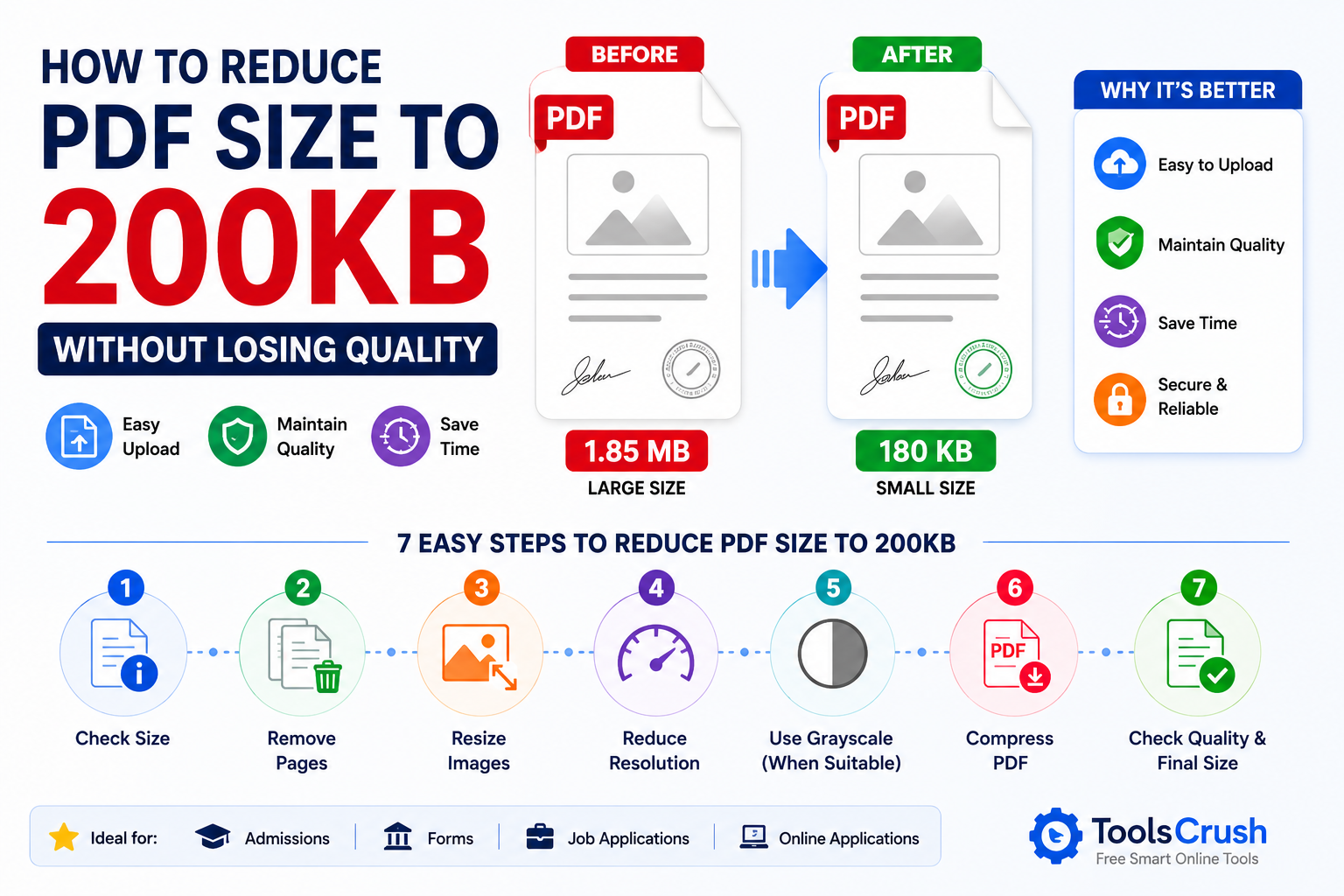
How to Reduce PDF Size to 200KB Without Losing Quality
Introduction
Reducing a PDF to 200KB can be challenging when the document contains scanned pages, photographs, signatures, certificates, or other image-heavy content. A PDF that looks simple may still be several megabytes because each scanned page can contain a high-resolution image.
If an online application requires a PDF under 200KB, the solution is not simply to compress the file as much as possible. The better approach is to remove unnecessary pages, resize oversized images, reduce excessive resolution, use grayscale when appropriate, compress embedded images, and then check the final document for readability.
The goal is to create a PDF under 200KB that remains clear, complete, and suitable for online submission.
Why Is My PDF Larger Than 200KB?
PDF file size depends on the content stored inside the document. Text-based PDFs can be relatively small, while scanned or image-heavy PDFs can become much larger.
Common reasons include:
- High-resolution scanned pages
- Excessive DPI
- Full-color images
- Large JPG or PNG files
- Multiple pages
- Photographs and graphics
- Large signatures or stamps
- Duplicate or blank pages
- Inefficient image compression
A scanned document is particularly difficult to reduce because each page may be stored as an image rather than simple text.
Before compressing your PDF, check the application’s exact upload requirement. If the maximum is 200KB, aim slightly below the limit to provide a safe margin.
How to Reduce PDF Size to 200KB
The most effective approach is to optimize the PDF in stages rather than immediately applying maximum compression.
1. Check the Original PDF Size
First, check how large the PDF is.
A 250KB PDF only needs a small reduction to reach 200KB, while a 2MB or 5MB scanned document requires much more aggressive optimization.
Knowing the original file size helps determine how much compression is actually necessary.
2. Remove Unnecessary Pages
Delete pages that are not required, including:
- Blank pages
- Duplicate scans
- Incorrect pages
- Unnecessary attachments
- Extra document copies
Reducing the page count can have a significant effect when the PDF contains scanned images.
3. Resize Large Images
If the PDF contains high-resolution photographs or scanned documents, reduce excessive image dimensions before creating the final PDF.
A modern smartphone photograph can contain millions of pixels even though an online application may only need a much smaller image.
Reducing unnecessary dimensions can significantly decrease the amount of data stored in the PDF.
4. Reduce Excessive Resolution
Higher resolution captures more detail but also creates larger image files.
If your scanned document contains unnecessarily high-resolution images, reducing the resolution can help bring the PDF closer to the 200KB target.
However, small text, signatures, stamps, dates, and identification numbers must remain readable.
5. Use Grayscale When Appropriate
For documents containing primarily black text on a white background, grayscale can reduce image data compared with full-color scanning.
Grayscale can be particularly useful for:
- Application forms
- Receipts
- Invoices
- Text-heavy documents
- Basic administrative documents
Keep color when it contains meaningful information, such as photographs, colored stamps, markings, or other details required by the application.
How to Compress a PDF to 200KB
Once unnecessary pages and excessive image data have been removed, compress the PDF.
You can use the ToolsCrush Compress PDF tool to reduce the size of an existing PDF.
For image-heavy documents, image optimization is often more important than simply removing metadata. A PDF containing several large scanned images may remain large even after basic PDF optimization.
A practical workflow is:
Remove pages → Resize images → Reduce excessive resolution → Use grayscale when suitable → Compress PDF → Check quality → Measure final size
If the result is still above 200KB, increase the level of optimization gradually rather than immediately using the strongest possible compression.
How to Reduce a Scanned PDF to 200KB
Scanned PDFs can be particularly large because every page may contain a high-resolution image.
To reduce a scanned PDF to 200KB:
Remove unnecessary pages → optimize scanned images → reduce resolution → use grayscale where appropriate → compress the PDF → inspect the result.
Text-heavy scans are generally easier to reduce to 200KB than documents containing photographs or detailed graphics.
If the PDF contains several large JPG images, optimize the source images before creating the PDF. ToolsCrush’s Image Compressor can be used to reduce oversized image files before converting them into a document.
Can You Reduce a PDF From 1MB to 200KB?
It may be possible, but the result depends heavily on the PDF’s contents.
Reducing a 1MB PDF to 200KB means removing or compressing a substantial amount of data. Image-heavy PDFs may require image resizing and stronger compression.
A practical approach is to identify the largest sources of file size first rather than repeatedly compressing the same PDF.
If the document contains large images, optimize those images before applying PDF compression.
Can You Reduce a PDF From 2MB to 200KB?
A 2MB PDF can sometimes be reduced to 200KB, particularly when it contains oversized scanned images or unnecessary pages.
However, reducing the file by approximately 90% may affect image quality.
For this type of compression, prioritize:
- Removing unnecessary pages
- Reducing excessive image dimensions
- Using grayscale where suitable
- Compressing embedded images
- Checking text readability
- Preserving signatures and stamps
If the final PDF becomes blurry, increase the quality slightly and look for other unnecessary data instead.
How to Reduce PDF Size Without Losing Quality
There is no compression method that guarantees zero quality loss for every image-based PDF.
However, you can minimize visible quality loss by optimizing the document intelligently.
Start with the least destructive changes:
- Remove unnecessary pages.
- Remove unnecessary images.
- Resize oversized images.
- Reduce excessive resolution.
- Use grayscale when appropriate.
- Apply moderate image compression.
- Compress the PDF.
- Inspect the final document.
This approach is generally better than immediately applying extreme compression.
What Should You Check After Compressing a PDF?
Before uploading a 200KB PDF to an application, open the final file and inspect every important page.
Check that:
- Text remains readable
- Signatures are visible
- Stamps and seals remain recognizable
- Dates and numbers are clear
- Photographs remain usable
- Pages are in the correct order
- No required information has disappeared
- The PDF opens correctly
- The final file is below 200KB
If the portal specifies maximum 200KB, targeting approximately 170–195KB can provide a safer margin.
How to Reduce JPG to PDF Size Under 200KB
If you are starting with JPG images rather than an existing PDF, optimize the images before converting them.
The workflow can be:
JPG → Resize → Compress → Convert to PDF → Compress PDF → Check size
Use the Image Compressor to reduce unnecessary image data and the JPG to PDF Converter to convert the images into a PDF.
This can be particularly useful for scanned certificates, application forms, receipts, and other image-based documents.
Is 200KB Enough for a Scanned Document?
It depends on the document.
A 200KB PDF may be sufficient for a short, text-heavy scanned form, but it can be difficult to preserve high-quality photographs or detailed multi-page color documents at such a small size.
If an application specifically requires a PDF under 200KB, prioritize:
File-size compliance + readability + complete information.
Do not sacrifice important document details simply to achieve the smallest possible file.
Frequently Asked Questions
How do I make a PDF less than 200KB?
Remove unnecessary pages, resize oversized images, reduce excessive resolution, use grayscale when appropriate, compress images, and optimize the PDF. Then verify the final file size and readability.
How can I compress a PDF to 200KB?
Use image optimization and PDF compression together. Start by removing unnecessary pages and reducing oversized images, then compress the PDF and check the final size.
How do I reduce a scanned PDF to 200KB?
Optimize the scanned images, reduce excessive resolution, use grayscale for suitable pages, remove unnecessary pages, and compress the resulting PDF.
Can I compress a 1MB PDF to 200KB?
Yes, it may be possible depending on the PDF’s content. Image-heavy PDFs may require substantial image resizing and compression, which can affect quality.
Can I reduce a 2MB PDF to 200KB without losing quality?
It depends on the document. Text-heavy PDFs may compress significantly, while photographs and detailed scans usually require a greater quality reduction.
Why is my PDF still larger than 200KB after compression?
The PDF may contain large scanned images, high-resolution photographs, multiple pages, or inefficiently compressed images. Optimize the source images and reduce excessive dimensions before compressing the PDF again.
How do I make a PDF under 200KB for an online application?
First check the application’s requirements, then remove unnecessary pages, optimize images, reduce excessive resolution, compress the PDF, and verify that the final document is below 200KB and remains readable.
Reduce Your PDF to 200KB With ToolsCrush
ToolsCrush provides browser-based PDF and image utilities that can help you prepare documents for strict upload requirements.
If you already have a large PDF, start with the Compress PDF tool.
If your document consists of large scanned images, optimize the source files with the Image Compressor.
If you need to convert JPG scans into a PDF, use the JPG to PDF Converter before checking and optimizing the final document.
Recommended workflow
Check file size → Remove unnecessary pages → Resize images → Optimize images → Convert to PDF → Compress PDF → Inspect quality → Measure final size → Upload
Final Takeaway
Reducing a PDF to 200KB requires more than simply clicking a compression button. The most effective strategy is to remove unnecessary content, optimize oversized images, reduce excessive resolution, use grayscale when appropriate, and compress the final PDF.
The goal is not merely to produce the smallest possible file. It is to create a 200KB PDF that remains readable, complete, and suitable for the application’s requirements.
For the best results, follow this workflow:
Optimize → Compress → Measure → Inspect → Submit
Whether you’re preparing a scanned certificate, application form, identity document, receipt, or other paperwork, always verify the application’s current file-size requirement and inspect the final PDF before uploading it.