
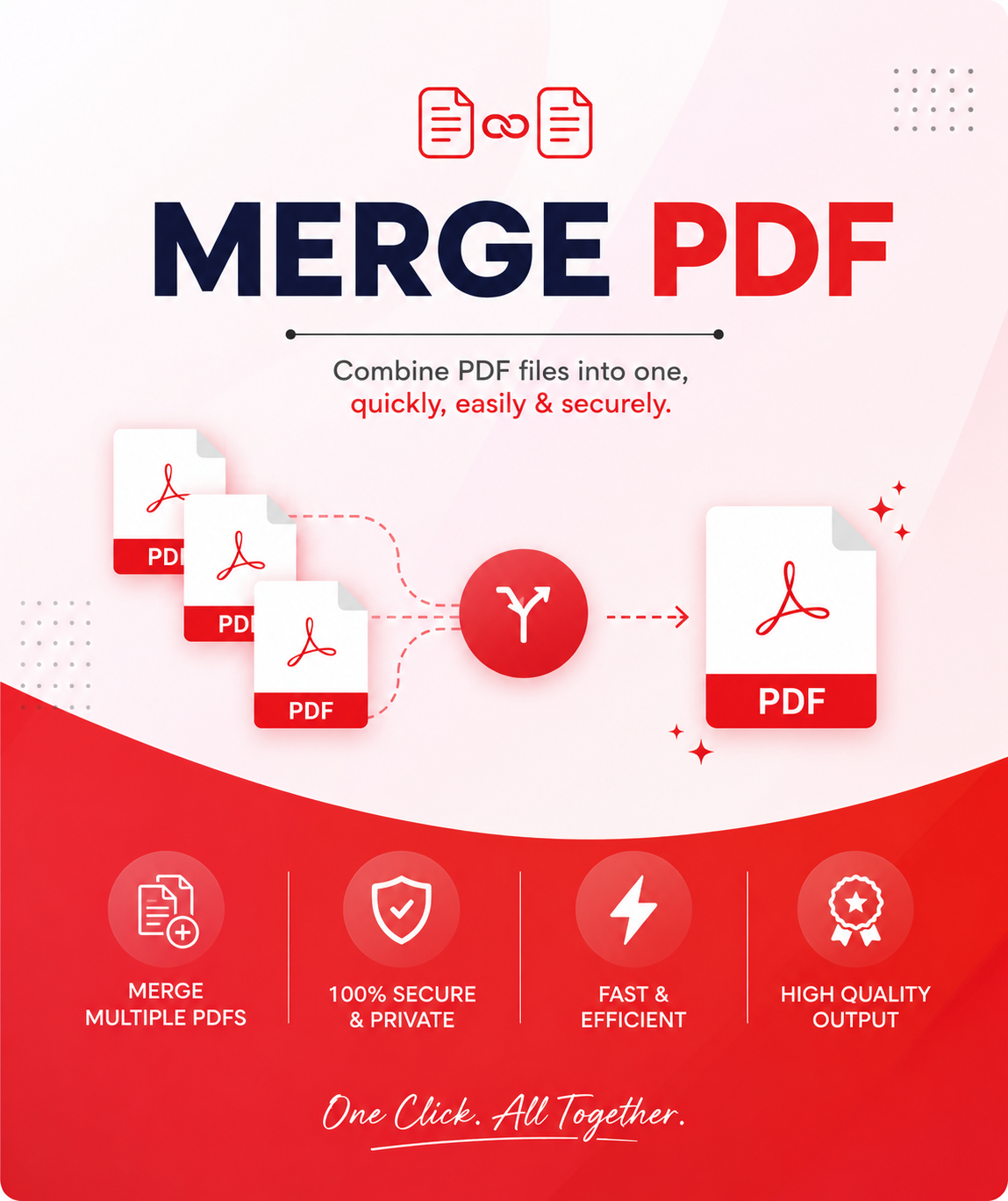
Merge Two Photos into One PDF Online for Free
Whether you’re submitting school assignments, uploading identity documents, sending business reports, applying for government services, or sharing scanned receipts, you often need to merge two photos into one PDF instead of sending multiple image files.
For example, imagine you need to upload:
- Front and back of your Aadhaar card
- PAN card and photograph
- Passport pages
- Two signed documents
- Multiple invoices
- Product images
- Assignment pages
- Medical reports
Most online forms accept only one PDF file, not multiple images.
Instead of uploading several pictures separately, you can combine them into a single organized PDF that is easier to share, print, archive, and upload.
The ToolsCrush Merge Photos to PDF tool allows you to merge two or more images into one professional PDF in seconds—without installing software or creating an account.
Whether you’re using a Windows PC, Mac, Android phone, iPhone, or tablet, ToolsCrush provides a fast, secure, and user-friendly way to convert images into high-quality PDF documents.
This complete guide explains everything you need to know about merging photos into PDFs, including supported image formats, common use cases, mobile methods, desktop solutions, and best practices.
What Does Merge Two Photos in One PDF Mean?
Merging two photos into one PDF simply means combining multiple image files into a single PDF document.
Instead of having:
- Photo1.jpg
- Photo2.jpg
You create:
Documents.pdf
The PDF contains both images as separate pages while maintaining their quality and order.
This process is commonly known as:
- Combine images into PDF
- Merge pictures into PDF
- JPG to PDF
- Image to PDF Converter
- Photo PDF Creator
Although different websites use different names, the purpose is the same: create one PDF from multiple images.
Why Do People Merge Photos into PDFs?
PDF is the most widely accepted document format across industries because it preserves formatting and is compatible with almost every device.
People merge images into PDFs for many reasons.
Government Applications
Government portals often require documents to be uploaded as a single PDF.
Examples include:
- Aadhaar verification
- PAN applications
- Passport services
- Driving licence applications
- Income tax documents
Job Applications
Recruiters frequently request:
- Resume
- Passport-size photo
- Certificates
- Identity proof
Combining these into one PDF makes uploading simpler.
Educational Assignments
Students often photograph handwritten assignments.
Instead of uploading ten separate photos, they merge them into one PDF for submission.
Business Documents
Businesses regularly combine:
- Bills
- Receipts
- Purchase orders
- Signed contracts
- Product catalogs
into a single PDF for easy sharing and record keeping.
Personal Records
People also merge family documents such as:
- Insurance papers
- Medical reports
- Property documents
- Utility bills
- Bank statements
into organized PDF files.
Why Choose PDF Instead of Individual Images?
Sending multiple images can create confusion.
A single PDF offers several advantages.
Better Organization
All pages remain in one document.
Universal Compatibility
PDF files open on Windows, macOS, Linux, Android, and iPhone without formatting issues.
Easy Sharing
Share one file instead of multiple images.
Better Printing
PDF maintains consistent page sizes and layout.
Professional Appearance
A neatly arranged PDF looks more professional than sending several separate photos.
Supported Image Formats
The ToolsCrush Merge Photos to PDF tool supports the most common image formats.
JPG
The most popular image format used by smartphones and cameras.
JPEG
A widely supported image format offering high compatibility and quality.
PNG
Ideal for screenshots, graphics, and transparent images.
JFIF
Many users search for Merge JFIF to PDF because some cameras and browsers save images in the JFIF format. ToolsCrush makes it easy to convert and combine JFIF images into a single PDF without extra software.
BMP
Useful for high-resolution bitmap images.
WEBP
A modern image format optimized for the web.
Benefits of Using the ToolsCrush Merge Photos to PDF Tool
The ToolsCrush converter is designed for speed, simplicity, and privacy.
No Installation Required
Everything works directly in your browser.
Free to Use
No hidden charges or subscriptions.
Fast Conversion
Merge multiple images into one PDF within seconds.
Secure Processing
Your files are processed securely, helping protect your privacy.
High-Quality Output
The original image quality is preserved as much as possible.
Works Everywhere
Compatible with:
- Windows
- macOS
- Linux
- Android
- iPhone
- Tablets
Common Scenarios Where You Need to Merge Images into One PDF
Uploading Identity Documents
Combine the front and back of an ID card into one PDF.
Sending Expense Receipts
Merge multiple receipts before emailing them to your employer.
Creating Product Catalogs
Businesses can organize product images into a shareable PDF.
Sharing Event Photos
Combine selected images into a printable document.
Preparing Legal Documents
Merge signed pages into a single PDF before submission.
Why Users Prefer Online PDF Tools
Traditional desktop software can be expensive and require installation.
Online tools like ToolsCrush provide several advantages:
- Instant access
- No software downloads
- Cross-platform compatibility
- Faster workflow
- Mobile-friendly interface
- Easy drag-and-drop uploads
For most everyday tasks, an online image-to-PDF tool is the quickest and most convenient solution.
Is It Safe to Merge Photos Online?
Security is one of the biggest concerns when uploading personal documents.
When using any online PDF tool, choose a trusted service that emphasizes privacy and secure processing.
If you’re merging sensitive documents such as passports, financial records, or identity cards, always ensure the website uses HTTPS encryption and handles uploaded files responsibly.
Merge Two Photos in One PDF – Part 1B
How to Merge Two Photos into One PDF Using ToolsCrush
The easiest way to combine multiple photos into a single PDF is by using the ToolsCrush Merge Photos to PDF tool. It works entirely in your browser, so there’s no need to install software or create an account.
Step 1: Open the Tool
Visit the ToolsCrush Merge Photos to PDF tool.
Step 2: Upload Your Photos
Select the images you want to combine. You can upload:
- JPG
- JPEG
- PNG
- JFIF
- WEBP
- BMP
You can upload two photos or multiple images at once.
Step 3: Arrange the Photos
Drag and drop the images into the order you want them to appear in the PDF.
For example:
- Cover Page
- ID Front
- ID Back
- Signature Page
Keeping pages in the correct sequence improves readability and ensures documents are presented professionally.
Step 4: Choose PDF Settings
Depending on your requirements, you may be able to adjust:
- Page orientation (Portrait or Landscape)
- Paper size (A4, Letter, Legal)
- Margins
- Image fit
- Page spacing
These settings help create a polished PDF suitable for printing or digital sharing.
Step 5: Generate the PDF
Click Merge or Create PDF.
Within seconds, your images will be combined into a single PDF document.
Step 6: Download and Verify
Download the PDF and quickly review it to confirm:
- All pages are present
- Images are in the correct order
- Text is readable
- Image quality meets your needs
How to Merge JPG Files in One PDF
One of the most common online searches is “How to merge JPG files in one PDF?”
The process is straightforward:
- Open the image-to-PDF tool.
- Upload all JPG images.
- Rearrange them if needed.
- Click Create PDF.
- Download the merged PDF.
This method is ideal for:
- Homework submissions
- Receipts
- Certificates
- Identity documents
- Business reports
- Product catalogs
Instead of sending several JPG files, you share one organized PDF.
How to Merge 2 Images to PDF
If you only have two images, the process is even simpler.
Examples include:
- Front and back of an Aadhaar card
- Passport photo and signature
- Before-and-after comparison images
- Two pages of handwritten notes
- Two scanned contracts
Upload both images, arrange them, and export them as a single PDF.
Merge JFIF to PDF
Many users notice their downloaded images are saved in the JFIF format instead of JPG. Since JFIF is based on the JPEG standard, it is widely supported by modern PDF conversion tools.
To merge JFIF images:
- Upload your JFIF files.
- Arrange them in the correct order.
- Generate the PDF.
- Download the finished document.
There is no need to convert JFIF to JPG first if your tool supports JFIF directly.
Merge and Reorder PDF Pages
Sometimes you’ve already created a PDF but realize the page order is incorrect.
Instead of starting over, use a Merge and Reorder PDF feature.
Typical use cases include:
- Moving the cover page to the beginning
- Rearranging invoice pages
- Organizing scanned documents
- Correcting chapter order
- Combining multiple reports
Being able to reorder pages saves time and produces a cleaner final document.
PDF Merge Side by Side Explained
Another frequently searched topic is “PDF Merge Side by Side.”
Unlike standard PDF merging—where each image appears on its own page—side-by-side merging places two images on the same page.
This layout is useful for:
- Before-and-after comparisons
- Product comparisons
- Design portfolios
- Research images
- Architectural drawings
- Educational worksheets
Example:
| Left Side | Right Side |
|---|---|
| Original Image | Edited Image |
or
| Front ID | Back ID |
Choose the layout that best matches your purpose.
Merge PDF Side by Side vs Standard Merge
| Feature | Standard Merge | Side-by-Side Merge |
|---|---|---|
| One image per page | ✅ | ❌ |
| Two images on one page | ❌ | ✅ |
| Easy document reading | ✅ | ✅ |
| Comparison documents | ❌ | ✅ |
| Best for scanned documents | ✅ | ✅ |
| Best for presentations | Limited | Excellent |
Understanding the difference helps you choose the right format.
How to Merge PDF Files on Mobile
Many people search for “How to merge PDF files in mobile” because they work primarily from smartphones.
Fortunately, modern online tools make this simple.
Android
- Open your browser.
- Visit ToolsCrush.
- Upload your images or PDFs.
- Rearrange pages.
- Merge.
- Download the final PDF.
iPhone
The process is nearly identical:
- Open Safari.
- Visit the ToolsCrush tool.
- Upload your files.
- Organize the page order.
- Generate the PDF.
- Save it to the Files app or iCloud Drive.
No additional apps are required.
Merge Word Files to PDF
Although this guide focuses on images, many users also need to merge Word files into a PDF.
A typical workflow is:
- Convert each Word document to PDF.
- Merge the resulting PDFs.
- Reorder pages if necessary.
- Save the final document.
Common examples include:
- Combining multiple reports
- Project documentation
- Contracts
- Proposals
- Academic submissions
Mail Merge PDF – What Does It Mean?
The phrase “Mail Merge PDF” refers to creating personalized PDF documents for multiple recipients using data from a spreadsheet or database.
For example:
- Employee salary slips
- Student report cards
- Certificates
- Personalized invoices
- Customer letters
Unlike merging photos, mail merge automatically inserts unique information into each document before exporting it as a PDF.
Basic Mail Merge Steps (Overview)
A typical mail merge process involves:
- Create the document template.
- Prepare the recipient data.
- Connect the data source.
- Preview personalized documents.
- Export the final files as PDFs.
- Send or print the documents.
This is different from image merging, but both workflows often involve creating or combining PDF documents.
PDF Merge with Adobe Reader
Many users search for “PDF Merge with Adobe Reader.”
It’s important to understand the distinction:
- Adobe Acrobat Reader is primarily designed for viewing, commenting, and printing PDFs.
- Advanced PDF editing and merging features are generally available in Adobe Acrobat Pro.
If you only need to merge a few photos or PDFs occasionally, a browser-based tool like ToolsCrush can be a convenient alternative because it requires no software installation.
Best Practices for Creating High-Quality PDFs
To achieve the best results:
Use Clear Images
Avoid blurry or low-resolution photos whenever possible.
Keep the Correct Page Order
Arrange pages logically before generating the PDF.
Use Consistent Orientation
Mixing portrait and landscape pages may affect readability.
Review Before Sharing
Always open the PDF after downloading to ensure everything appears correctly.
Compress Only When Necessary
Compression reduces file size but may also reduce image quality. Choose settings that balance quality and size.
Common Mistakes to Avoid
- Uploading blurry images
- Incorrect page order
- Mixing unrelated documents
- Using screenshots instead of original files
- Forgetting to verify the final PDF
- Rotating pages incorrectly
- Using oversized images when smaller ones would suffice
Avoiding these issues helps produce cleaner, more professional documents.
Why Choose ToolsCrush?
ToolsCrush is built to make everyday document tasks faster and simpler.
Benefits include:
- No software installation
- Free online access
- Easy drag-and-drop interface
- Multiple image format support
- Fast PDF generation
- Mobile-friendly experience
- Secure browser-based processing
- Organized page reordering
Whether you’re preparing school assignments, business reports, government applications, or personal records, ToolsCrush helps you create professional PDFs in just a few clicks.
Merge Two Photos in One PDF – Part 2 (Advanced Guide, EEAT & SEO)
This section completes the ultimate guide by covering advanced techniques, PDF optimization, industry use cases, security, FAQs, and SEO-rich information that helps both users and search engines understand the topic comprehensively.
Why PDFs Are the Preferred Format Worldwide
PDF (Portable Document Format) has become the global standard for sharing documents because it preserves formatting across all devices.
Whether you open a PDF on:
- Windows
- macOS
- Linux
- Android
- iPhone
- Tablet
- Smart TV
the document looks exactly the same.
Unlike image files that may resize, compress, or display differently across platforms, PDFs maintain consistent quality, layout, and page order.
This is why universities, businesses, banks, government agencies, hospitals, and corporate organizations prefer PDF over individual image files.
Image to PDF vs PDF Merge – What’s the Difference?
Many users confuse these two processes.
| Image to PDF | PDF Merge |
|---|---|
| Converts photos into PDF | Combines existing PDF files |
| Input: JPG, PNG, JPEG, WEBP, JFIF | Input: PDF |
| Creates a new PDF | Combines multiple PDFs |
| Best for scanned images | Best for reports & documents |
| Used for photos | Used for PDF documents |
Understanding this distinction helps you choose the right tool.
When Should You Merge Photos into One PDF?
Here are some common real-world situations.
Students
Students often combine:
- Assignment pages
- Lab reports
- Project work
- Certificates
before uploading to university portals.
Government Applications
Most government websites require documents in PDF format.
Examples include:
- Passport applications
- PAN card
- Aadhaar verification
- Income Tax
- Scholarship forms
- Driving Licence
- Employment registrations
HR Professionals
Human Resources departments combine:
- Resume
- Passport Photo
- Identity Proof
- Certificates
- Experience Letters
into a single recruitment document.
Business Owners
Businesses regularly merge:
- Invoices
- Bills
- Purchase Orders
- Delivery Challans
- Agreements
before emailing clients.
Doctors & Hospitals
Healthcare professionals combine:
- Medical Reports
- Test Results
- Prescriptions
- Referral Letters
into organized PDFs.
How to Maintain Image Quality While Creating PDFs
One common concern is losing image quality.
Follow these best practices.
Upload Original Images
Avoid screenshots whenever possible.
Don’t Compress Multiple Times
Repeated compression reduces clarity.
Use High Resolution
Higher-quality images produce sharper PDFs.
Arrange Pages Before Conversion
This avoids unnecessary editing later.
Select the Right Paper Size
For documents:
- A4
For photographs:
- Original Size
How to Reduce PDF File Size Without Losing Quality
Large PDFs can be difficult to upload.
Here are practical ways to optimize them.
✅ Resize oversized images before converting.
✅ Remove duplicate pages.
✅ Compress images intelligently.
✅ Avoid unnecessary blank pages.
✅ Use grayscale for black-and-white documents.
A properly optimized PDF uploads faster while maintaining readability.
Security & Privacy Tips
When uploading personal documents online, privacy matters.
Always choose tools that:
- Use HTTPS encryption.
- Process files securely.
- Don’t require unnecessary permissions.
- Minimize data retention.
Avoid uploading confidential documents on unknown or untrusted websites.
Common Problems & Solutions
Images Upload but PDF Isn’t Generated
Possible reasons:
- Unsupported format
- Corrupted image
- Internet interruption
Solution:
Re-upload the files or convert uncommon formats before trying again.
Wrong Page Order
Always drag images into the desired sequence before creating the PDF.
PDF Is Too Large
Compress images or reduce image resolution before conversion.
Images Appear Rotated
Rotate the images correctly before merging them into the PDF.
Blurry PDF
Use the original image instead of screenshots or heavily compressed copies.
Image Formats Supported
ToolsCrush supports multiple image formats, including:
- JPG
- JPEG
- PNG
- WEBP
- BMP
- GIF (static)
- TIFF (where supported)
- JFIF
This allows users to combine images from different devices without extra conversion steps.
Why Businesses Prefer Browser-Based PDF Tools
Online tools eliminate many traditional software limitations.
Benefits include:
- No installation
- No updates
- Works on any operating system
- Easy collaboration
- Faster workflow
- Accessible anywhere with internet access
This makes browser-based PDF tools especially useful for remote teams and hybrid workplaces.
Frequently Asked Questions (FAQ)
1. Can I merge more than two photos into one PDF?
Yes. Most online tools allow you to combine multiple images into a single PDF.
2. Is the ToolsCrush Merge Photos to PDF tool free?
Yes. It is free to use for everyday document creation.
3. Which image formats are supported?
JPG, JPEG, PNG, WEBP, BMP, and JFIF are commonly supported.
4. Can I rearrange images before creating the PDF?
Yes. You can organize the images into the correct order before generating the PDF.
5. Does merging photos reduce image quality?
Not necessarily. Using original images and appropriate settings helps preserve quality.
6. Can I use the tool on Android?
Yes. It works directly in your mobile browser.
7. Can I use it on an iPhone?
Absolutely. Safari and other modern browsers support browser-based PDF tools.
8. Can I merge scanned documents?
Yes. Scanned images can be combined into one PDF.
9. Can I merge JFIF images?
Yes. Supported JFIF files can be converted into a single PDF.
10. Can I print the generated PDF?
Yes. PDFs are ideal for both digital sharing and printing.
11. Is registration required?
No. ToolsCrush is designed for quick access without unnecessary sign-ups.
12. Can I merge photos for passport applications?
Yes. Many users combine passport-sized photos and supporting documents into one PDF for online submissions.
13. What’s the difference between JPG and PDF?
JPG is an image format, while PDF is a document format capable of containing one or more pages.
14. Can I email the merged PDF?
Yes. Sharing one PDF is generally easier than sending multiple image files.
15. Is the generated PDF compatible with Adobe Reader?
Yes. Standard PDF files can typically be opened in Adobe Acrobat Reader and other PDF viewers.
About ToolsCrush
ToolsCrush is a free online productivity platform that offers PDF, image, developer, calculator, SEO, and utility tools to simplify everyday digital tasks.
Popular categories include:
- Merge PDF
- Split PDF
- Compress PDF
- JPG to PDF
- PDF to JPG
- QR Code Generator
- JSON Formatter
- Lorem Ipsum Generator
- Image Compressor
- Loan EMI Calculator
- SEO Tools
- Developer Utilities
Every tool is designed to work directly in the browser, eliminating the need for software installation while prioritizing speed, simplicity, and usability.
Internal Linking Strategy
Strengthen topical authority by linking this article to related ToolsCrush pages such as:
- Merge PDF
- Split PDF
- Compress PDF
- JPG to PDF Converter
- PDF to JPG Converter
- Image Compressor
- Image Resizer
- Image Converter
- QR Code Generator
- JSON Formatter
- Lorem Ipsum Generator
- Word to PDF Converter
- PDF to Word Converter
These contextual links help users discover additional tools and assist search engines in understanding the relationship between your content.
Final Thoughts
Merging two photos into one PDF is a simple yet essential task for students, professionals, businesses, and individuals. A well-organized PDF is easier to upload, share, print, and archive than multiple separate image files.
Whether you’re submitting official documents, organizing receipts, sharing assignments, or preparing business reports, using a reliable browser-based tool can save time and improve productivity.
With ToolsCrush, you can combine JPG, JPEG, PNG, WEBP, BMP, and JFIF images into a single high-quality PDF in just a few clicks. The platform works across desktop and mobile devices, requires no software installation, and makes document management straightforward for everyday users.
Semantic SEO Keywords
Merge Two Photos in One PDF, Merge 2 Images to PDF, Combine Images into PDF, Merge JPG to PDF, Image to PDF Converter, Merge JFIF to PDF, Merge Word Files to PDF, PDF Merge Side by Side, Merge PDF Side by Side, Merge and Reorder PDF, How to Merge JPG Files in One PDF, How to Merge PDF Files on Mobile, Online PDF Merger, Free PDF Merge Tool, Photo to PDF, Combine Photos into PDF, Merge Pictures into PDF, JPG to PDF Online, PDF Organizer, PDF Converter, Document Merger, Online PDF Tool, Image Converter, Mobile PDF Tool.
Conclusion
Whether you’re merging two photos, organizing multiple scanned pages, or creating professional documents from images, choosing the right PDF tool makes all the difference.
The ToolsCrush Merge Photos to PDF tool offers a fast, secure, and intuitive way to create organized PDF documents from your images. By supporting popular formats, mobile devices, and flexible page ordering, it helps users complete document tasks efficiently without unnecessary complexity.
Use this guide whenever you need to convert images into PDFs, merge and reorder pages, or prepare documents for school, work, or official submissions—and let ToolsCrush simplify your workflow.