
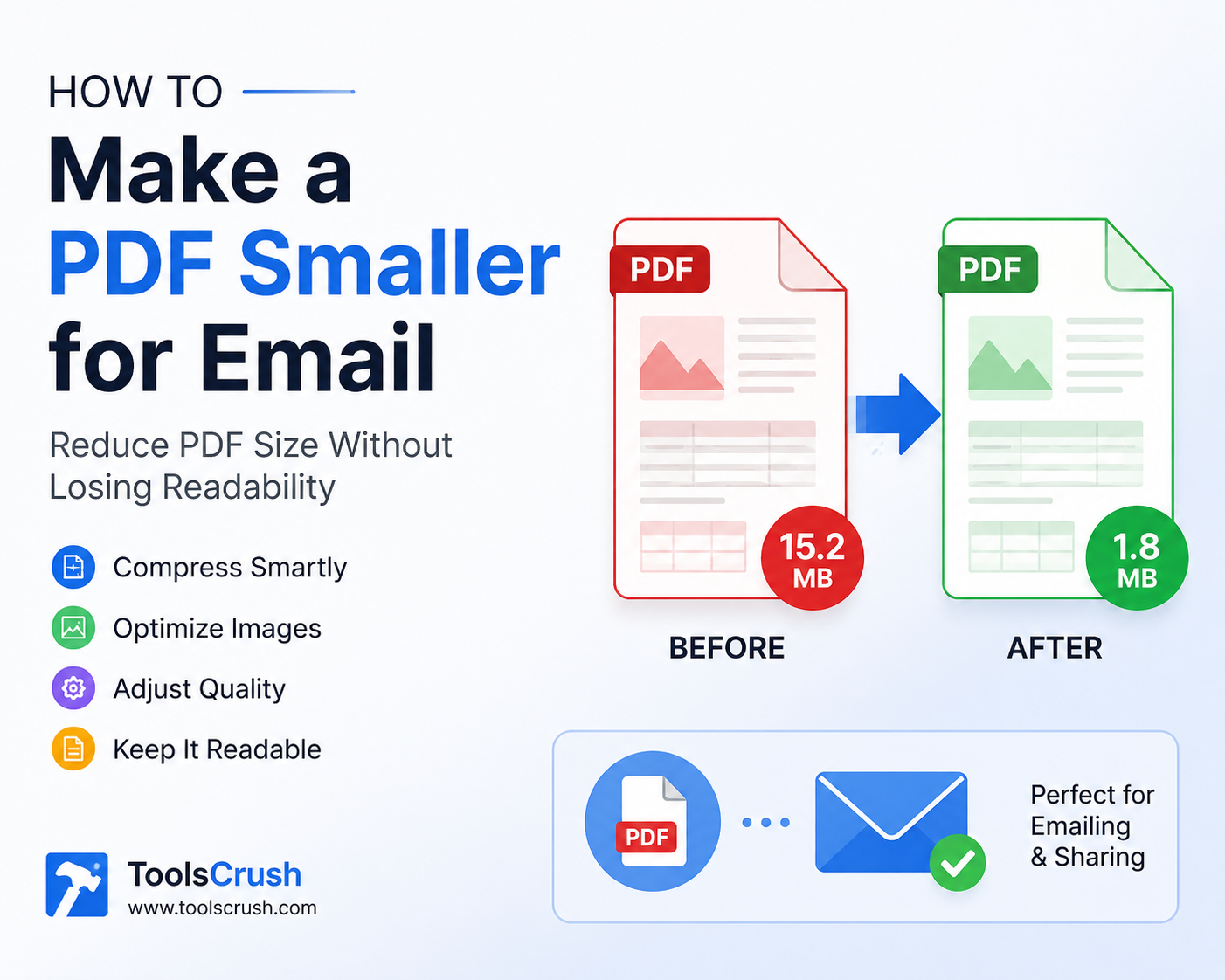
How to Make a PDF Smaller for Email: Reduce PDF Size Without Losing Readability
How to Make a PDF Smaller for Email Without Losing Quality
Trying to email a PDF only to receive an “attachment too large” message is a common problem. Large scanned documents, image-heavy reports, presentations exported as PDFs, and high-resolution photographs can quickly create files that are difficult or impossible to send as normal email attachments.
So, how do you make a PDF smaller for email?
The quickest solution is to compress the PDF and optimize the images inside it. If the document is still too large, you can reduce excessive image resolution, remove unnecessary pages, split the PDF, or send it through a cloud-storage link instead.
For a personal Gmail account, Google currently lists a 25 MB attachment limit. If the total attachment size exceeds the limit, Gmail automatically replaces the attachment with a Google Drive link. Work and school accounts can have administrator-defined limits.
With ToolsCrush, you can use the Compress PDF tool to reduce the size of an existing PDF before attaching it to an email.
Quick Answer: How Do I Make a PDF Smaller for Email?
To make a PDF smaller for email:
- Check the current PDF file size.
- Remove unnecessary pages.
- Compress the PDF.
- Reduce oversized images and scans.
- Lower excessive image resolution when appropriate.
- Use grayscale for suitable document scans.
- Download the compressed PDF.
- Check the new file size.
- Open the PDF and verify readability.
- Attach the optimized file to your email.
If compression still does not make the PDF small enough, split the document or upload it to a cloud-storage service and send a sharing link instead.
Why Is My PDF Too Large to Email?
PDF files can become large for several different reasons.
The most common cause is embedded images.
A PDF containing ordinary text may be relatively small, while a PDF containing dozens of high-resolution photographs or scanned pages can become many megabytes.
Common causes of large PDF files include:
- High-resolution photographs
- 300–600 DPI scanned documents
- Full-color scans
- Large JPG or PNG images
- Multiple pages
- Embedded fonts
- High-quality graphics
- Unnecessary pages
- Large images that were resized visually but not compressed
- Export settings designed for professional printing
A useful rule is that changing the appearance of an image on a page does not necessarily reduce the underlying image data. The actual embedded image may still contain a large number of pixels.
What Is the Best Way to Make a PDF Smaller for Email?
For most users, the best first step is PDF compression.
Compression attempts to reduce unnecessary data while maintaining an acceptable balance between file size and document quality.
For example:
Original PDF → Analyze → Compress Images → Optimize PDF → Download → Check Size → Email
For an image-heavy PDF, image optimization can make a much larger difference than removing a small amount of metadata.
If the document contains sensitive information, also consider how the compression tool processes files. Browser-based processing can be useful when you want the work to happen locally rather than unnecessarily transferring documents to a remote server.
How to Make a PDF Smaller for Email Using ToolsCrush
If your PDF is too large to attach, you can use the ToolsCrush Compress PDF tool as the first step.
Step 1: Check Your PDF Size
Before compressing, check how large the original file is.
For example:
Original PDF: 18 MB
Required email target: 10 MB
You know that the file needs meaningful compression.
Step 2: Open the Compress PDF Tool
Open the ToolsCrush PDF compression tool and select the PDF you want to optimize.
Step 3: Upload the PDF
Select your PDF from your computer or mobile device.
The document might contain:
- Text
- Images
- Scanned pages
- Tables
- Signatures
- Charts
- Forms
Step 4: Compress the PDF
Choose an appropriate compression level and process the document.
The objective isn’t simply to produce the smallest possible file.
The objective is:
Small enough to email + readable enough to use.
Step 5: Download the Compressed PDF
Download the optimized version and compare its size with the original.
For example:
Before: 18 MB
After: 7 MB
The exact reduction depends on the PDF’s contents.
Step 6: Check the Document
Before attaching it to an important email, open the compressed PDF.
Check:
- Text
- Images
- Signatures
- Charts
- Tables
- Page order
- Forms
- Important numbers
- Small print
A file that is smaller but unreadable is not a successful optimization.
How to Reduce PDF Size Without Losing Quality
One of the most common questions is:
Can you compress a PDF without losing quality?
Yes, but there is an important limitation: lossless and lossy compression behave differently.
Lossless optimization attempts to reduce unnecessary data without changing the visual information. Image recompression or resolution reduction can produce greater size savings, but may reduce visual detail.
The best strategy is therefore to start with moderate optimization and inspect the result.
For documents containing:
- Text
- Contracts
- Invoices
- Resumes
- Forms
preserving readability should be the priority.
For image-heavy documents, a greater reduction may be acceptable if the images remain clear enough for their purpose.
How to Make a Scanned PDF Smaller for Email
Scanned PDFs are often much larger than ordinary text PDFs because each page may effectively be stored as an image.
A 20-page scanned document can therefore become surprisingly large.
To reduce a scanned PDF:
- Remove blank pages.
- Remove duplicate pages.
- Reduce excessive scan resolution.
- Convert suitable pages to grayscale.
- Compress embedded images.
- Optimize the PDF.
- Check the final document carefully.
If you’re scanning the document from scratch, choosing an appropriate resolution at the beginning can also prevent unnecessary file size.
How to Reduce PDF Size for Gmail
For personal Gmail accounts, Google currently states that the attachment limit is 25 MB. When the total attachment size is greater than the limit, Gmail automatically converts the attachment into a Google Drive link. Work and school accounts can have different administrator-defined limits.
If your PDF is approaching the limit, it is sensible to leave some room rather than targeting the exact maximum.
For example, if your PDF is 24.9 MB, it may be better to compress it further rather than assuming it will always send successfully.
Recommended workflow
Large PDF → Compress → Verify size → Open and inspect → Attach to Gmail
If it remains above the limit, use Google Drive and send the document as a link. Google specifically recommends Drive for sending files larger than Gmail’s attachment limit.
How to Compress a PDF for Outlook
Outlook also has attachment-size restrictions that can vary depending on the account and environment.
Microsoft states that Outlook.com and Gmail-type internet email accounts have a 20 MB email-size limit in the Outlook documentation, while Exchange environments can use different limits. The limit can include both attachments and the email itself.
If your PDF is too large for Outlook, you can:
- Compress the PDF
- Compress the source images
- ZIP the file where appropriate
- Upload it to a cloud service
- Send a sharing link
For business email, always consider that your organization’s mail server may impose a stricter limit.
PDF Too Large to Email? Try These Methods
If compression doesn’t solve the problem, you have several alternatives.
Method 1: Remove Unnecessary Pages
A 50-page PDF may contain pages that don’t need to be sent.
Removing irrelevant pages can reduce the file size and make the document easier for the recipient to navigate.
If you need to separate a large document into smaller sections, use the ToolsCrush Split PDF tool.
Method 2: Compress the Original Images
If the PDF was created from photographs or scans, the source images may be responsible for most of its size.
A useful workflow is:
Original images → Image Compressor → JPG to PDF → PDF Compressor
ToolsCrush also provides an Image Compressor for optimizing image files before they’re inserted into a PDF.
Method 3: Split the PDF
If a document contains many pages, splitting it into logical sections can make individual files easier to send.
For example:
Part 1 — Pages 1–10
Part 2 — Pages 11–20
This can be particularly useful for large reports, manuals, scanned records, and project documentation.
Method 4: Send a Cloud Link
If the PDF is still too large, you don’t necessarily need to attach it directly.
Google recommends using Google Drive for files that exceed Gmail’s attachment limit.
With Google Drive, you can control whether recipients can view, comment, or edit a shared file.
This is often preferable to repeatedly compressing a document until its quality becomes unacceptable.
Should I ZIP a PDF Before Emailing It?
ZIP compression can reduce some file sizes, but it is not always the best solution for PDFs.
PDF files already use various compression techniques internally. As a result, putting an already optimized PDF into a ZIP archive may produce only a modest reduction.
If the PDF contains large images, optimizing the PDF itself can be more effective than simply creating a ZIP file.
Microsoft nevertheless lists compressing or zipping files as one possible way to reduce an attachment enough to fit within Outlook limits.
How to Make a PDF Smaller on Mobile
You don’t necessarily need a desktop computer to reduce a PDF.
A mobile workflow can be:
Phone → Open browser → ToolsCrush Compress PDF → Select PDF → Compress → Download → Share
This is useful when:
- You received the PDF through WhatsApp
- The document is stored in Google Drive
- You scanned the document using your phone
- You need to email a document immediately
- You are completing an application from your phone
After compression, open the downloaded PDF before sending it to make sure the document still looks correct.
How Small Should a PDF Be for Email?
There isn’t one universal PDF size that works for every email system.
The appropriate target depends on:
- Email provider
- Work or personal account
- Organization’s mail server
- Recipient’s email system
- Number of attachments
- Email body size
- Document type
For example, Google’s current personal Gmail limit is 25 MB, while organizational accounts can have different restrictions.
Therefore, don’t assume that a PDF that works in your personal Gmail account will automatically work through a corporate email system.
If you’re sending a business document to an unknown recipient, keeping the attachment comfortably below the likely limit can improve compatibility.
How to Reduce a PDF to 10MB, 5MB, or 2MB
If you have a specific target, use progressive optimization rather than immediately applying the strongest possible compression.
To get under 10MB
Start with moderate compression and remove unnecessary pages.
To get under 5MB
Optimize images and reduce excessive scan resolution.
To get under 2MB
You may need stronger image compression and resolution reduction, particularly for scanned or photograph-heavy PDFs.
For very small targets
If the document contains many images, achieving an extremely small size may require visible quality compromises.
Always compare:
File size ↔ readability ↔ visual quality
rather than focusing on file size alone.
Why Are Scanned PDFs So Much Larger Than Text PDFs?
A text PDF can store letters as text objects, which generally require relatively little data.
A scanned page, however, may be stored as a raster image containing thousands or millions of pixels.
Consider a document containing:
20 text pages
versus:
20 high-resolution scanned pages
They may contain exactly the same written information, but the scanned version can be dramatically larger because every page contains image data.
This is why reducing scan resolution and compressing embedded images can have such a significant effect.
Does PDF Compression Reduce Quality?
It can.
The amount of quality loss depends on what the compression process changes.
Text-heavy PDF
Usually easier to optimize while maintaining readability.
Scanned PDF
More sensitive to image compression.
Photo-heavy PDF
May require stronger compression to achieve substantial size reductions.
Certificate or legal document
Quality should be prioritized because signatures, seals, stamps, and fine print may be important.
The safest approach is to compress the document and then inspect the result before sending it.
How to Compress PDF Without Making Text Blurry
If the compressed PDF looks blurry:
- Use a less aggressive compression level.
- Check the original image resolution.
- Avoid repeatedly compressing the same file.
- Optimize source images before creating the PDF.
- Preserve sufficient resolution for small text.
- Compare the original and compressed versions.
For important documents, don’t sacrifice legibility simply to save a few additional megabytes.
PDF Compression for Different Types of Documents
| Document type | Best approach |
|---|---|
| Resume | Moderate compression |
| Invoice | Moderate compression |
| Scanned form | Image optimization + compression |
| Certificate | Preserve fine details |
| Photograph collection | Resize + image compression |
| Business report | Moderate compression |
| Presentation PDF | Optimize images |
| Multi-page scan | Remove unnecessary pages + compress |
| Legal document | Preserve readability and signatures |
| Academic assignment | Moderate compression |
What Is the Difference Between PDF Compression and ZIP Compression?
These processes are related but not identical.
PDF compression optimizes the contents of the PDF itself.
ZIP compression packages the PDF into a compressed archive.
If the recipient needs to open the document directly as a PDF, a compressed PDF is usually more convenient.
If your email system or workflow specifically permits ZIP files, ZIP can be another option.
Can I Make a PDF Smaller Without Converting It?
Yes.
You don’t necessarily need to convert the PDF into another format.
A PDF compressor can optimize the existing document by reducing unnecessary data and optimizing embedded content.
This is especially useful when you need to preserve:
- Page structure
- Text
- Links
- Forms
- Page order
- PDF format
What If the PDF Contains Sensitive Information?
Be careful when processing documents containing:
- Passport information
- Identity documents
- Financial records
- Contracts
- Medical records
- Business information
- Personal addresses
Before using any online PDF service, review its privacy and file-processing practices.
For sensitive documents, browser-based processing can be preferable when the tool supports it because the file can potentially be processed locally rather than uploaded to a remote server.
Also remember that email itself is not automatically a secure document-sharing channel. For highly sensitive information, use the security and sharing controls required by your organization.
How to Check PDF File Size Before Sending
Before attaching the document, check its actual size.
Windows
Right-click the PDF and select Properties.
macOS
Select the PDF and use Get Info.
Android / iPhone
Open the file information/details view in the Files or file-management application.
Then compare the size against your email provider’s limit.
A Simple PDF-to-Email Workflow
The complete process can be summarized as:
Create PDF
↓
Check File Size
↓
Remove Unnecessary Pages
↓
Compress PDF
↓
Optimize Images
↓
Download
↓
Check File Size Again
↓
Inspect Quality
↓
Attach to Email
If the PDF is still too large:
Split PDF OR Share Cloud Link
Common PDF Email Problems and Solutions
“Attachment Is Too Large”
Compress the PDF and check its size again.
PDF Is Still Too Large After Compression
Remove unnecessary pages, optimize source images, split the document, or send a cloud link.
PDF Looks Blurry After Compression
Use a lower compression level and preserve more image resolution.
Email Sends but Recipient Cannot Open the File
Verify that the PDF opens correctly before sending and that the file is not corrupted.
Corporate Email Rejects a PDF That Gmail Accepts
Your organization’s email system may have a lower attachment limit or additional security rules.
Gmail Doesn’t Send My Large Attachment
For personal Gmail accounts, attachments are limited to 25 MB. Gmail can instead use Google Drive for files exceeding the attachment limit.
Frequently Asked Questions
How can I make a PDF smaller for email?
Use a PDF compression tool to optimize the document. For larger reductions, remove unnecessary pages, resize oversized images, reduce excessive scan resolution, and compress embedded images. Always verify the final PDF before sending.
What is the easiest way to reduce PDF size?
For most users, the easiest method is to use a PDF compressor. Upload the document, apply suitable compression, download the optimized PDF, and check its final size.
How do I compress a PDF for Gmail?
Compress the PDF until it is comfortably below Gmail’s applicable attachment limit. Google currently lists 25 MB for personal Gmail accounts. If the file exceeds the limit, Gmail can automatically replace the attachment with a Google Drive link.
How do I make a PDF smaller without losing quality?
Start with moderate compression and prioritize readability. Avoid excessive image resizing and inspect text, signatures, images, and fine details after compression.
Why is my scanned PDF so large?
Scanned PDFs often contain full-page raster images. High DPI, full-color scanning, large image dimensions, and multiple pages can significantly increase the file size.
Can I reduce a PDF to 5MB?
Yes, depending on the original file. Image-heavy PDFs may require image compression and resolution reduction, while text-based PDFs may already be small.
Can I make a PDF smaller than 1MB?
Sometimes. The achievable size depends on the number of pages, images, resolution, and content. A simple text document may be reduced much more easily than a photograph-heavy document.
Does zipping a PDF make it smaller?
It can, but PDF files are already internally compressed, so ZIP may provide only a limited additional reduction. Optimizing the PDF itself is often more useful.
Can I compress a PDF on my phone?
Yes. A browser-based PDF compressor can be used from Android or iPhone without requiring desktop software.
Should I compress a PDF before emailing it?
If the document is large or close to your email provider’s attachment limit, compression is a practical way to reduce the chance of an attachment-size error.
What should I do if my PDF is still too large after compression?
Remove unnecessary pages, optimize the original images, split the PDF into smaller documents, or upload the file to a cloud-storage service and send a sharing link.
Related Tools for PDF Size and Email Workflows
If you’re preparing a document for email, different stages may require different ToolsCrush tools:
- Compress PDF — reduce the size of an existing PDF.
- Split PDF — divide a large document into smaller files.
- Merge PDF — combine separate PDF documents.
- JPG to PDF — convert images into a PDF before compression.
- Image Compressor — reduce image size before creating a PDF.
- PDF to JPG — convert PDF pages into images when needed.
This creates a useful workflow:
Image → Compress Image → JPG to PDF → Compress PDF → Email
Or:
Large PDF → Compress PDF → Check Size → Email
Why Compressing a PDF Before Email Is Better Than Ignoring the Size
A smaller PDF can be easier to send, download, store, and manage.
It can also help when the recipient uses a stricter email system than yours.
However, the goal shouldn’t be to make every PDF as small as possible.
The goal is to create the smallest practical file that still preserves the information the recipient needs.
That distinction is especially important for official documents, contracts, certificates, invoices, and scanned records.
For current Gmail attachment limits and instructions for sending larger files through Google Drive, see the official Gmail Help documentation.
Final Takeaway
If you are wondering how to make a PDF smaller for email, start by checking the file size and identifying what makes the document large.
For most image-heavy or scanned PDFs, the most useful workflow is:
Check Size → Remove Unnecessary Pages → Compress PDF → Optimize Images → Verify Quality → Check Final Size → Email
If the file still exceeds the recipient’s limit, don’t keep compressing until the document becomes unreadable. Instead, split the PDF or share it through a trusted cloud-storage service.
For personal Gmail accounts, Google currently lists a 25 MB attachment limit, while work and school accounts may have different limits. Gmail supports sending larger files through Google Drive.
For Outlook, Microsoft also recommends options such as compressing files or using cloud storage when attachments exceed applicable limits.
With ToolsCrush, you can make PDF compression part of a simple browser-based workflow and prepare documents for email without installing desktop software.
Compress a PDF with ToolsCrush
The ideal result isn’t simply a smaller PDF—it is a PDF that is small enough to send, clear enough to read, and appropriate for the recipient’s email system.