

How to Convert Images to PDF on Mobile – iPhone & Android
Need to convert images to PDF on mobile without using a computer? You can turn photos, JPG files, screenshots, scanned documents, receipts, certificates, and other images into PDF files directly from an iPhone or Android phone.
The simplest option is to use a mobile browser with an online image to PDF converter such as ToolsCrush. For documents that need scanning, Android users can also use Google Drive’s built-in scanning feature, while iPhone users have several built-in ways to work with PDFs and images.
If you need a quick answer:
To convert an image to PDF on mobile, open an image-to-PDF tool, select your photo or photos, arrange them in the required order, convert them to PDF, and save the resulting file to your phone.
This guide explains how to convert photos to PDF on Android and iPhone, how to combine multiple images into one PDF, how to reduce the resulting PDF size, and how to prepare documents for online applications.
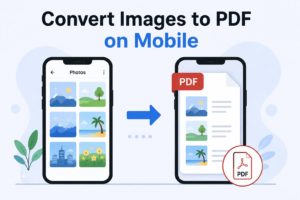
Table of Contents
- What Does Converting an Image to PDF Mean?
- Why Convert Photos to PDF on a Phone?
- How to Convert Images to PDF on Mobile
- How to Convert Images to PDF Using ToolsCrush
- How to Convert JPG to PDF on Android
- How to Convert Images to PDF on iPhone
- How to Convert Multiple Photos Into One PDF
- How to Convert Scanned Documents to PDF
- How to Convert Images to PDF Without an App
- JPG vs PDF: Which Format Should You Use?
- How to Make a Mobile PDF Smaller
- Common Problems When Converting Images to PDF
- Tips for Better Image-to-PDF Conversion
- Frequently Asked Questions
- Related Tools
- Final Takeaway
What Does Converting an Image to PDF Mean?
Converting an image to PDF means taking an image file such as JPG, JPEG, PNG, WEBP, or another supported format and placing it inside a PDF document.
For example:
Photo.jpg → PDF document
If you convert several images, each image can become a separate page:
Photo 1 → Page 1
Photo 2 → Page 2
Photo 3 → Page 3
This makes PDF particularly useful when you need to submit several photographs or scanned pages as one document.
Why Convert Photos to PDF on a Phone?
Smartphones are often where documents are created in the first place. A phone camera can capture a receipt, identity document, assignment, invoice, certificate, or handwritten page within seconds.
Converting those photos to PDF can make them easier to:
- Upload to websites
- Submit to online applications
- Email as a document
- Archive
- Share through messaging apps
- Combine multiple pages
- Organize business records
A PDF can also keep several pages together instead of requiring you to send multiple separate image files.
How to Convert Images to PDF on Mobile
The basic process is almost the same regardless of whether you’re using Android or iPhone.
Step 1: Choose the Images
Select the photo or images you want to convert.
These might be:
- JPG photos
- JPEG images
- PNG screenshots
- Scanned documents
- Receipts
- Certificates
- Handwritten notes
Step 2: Open an Image-to-PDF Tool
Open a mobile-friendly image-to-PDF converter in your browser.
For a browser-based workflow, you can use the ToolsCrush JPG to PDF Converter.
Step 3: Upload Your Images
Tap the upload area and select the images stored in your phone’s Photos, Gallery, or Files application.
Step 4: Arrange the Pages
If you’re converting multiple images, check their order before creating the PDF.
For example:
- Application form
- Identity proof
- Address proof
- Supporting certificate
Step 5: Create the PDF
Start the conversion and allow the browser to process the selected images.
Step 6: Download and Check the PDF
Open the resulting PDF before submitting or sharing it.
Check that:
- Every page is present
- Images are not rotated incorrectly
- Text is readable
- Pages are in the correct order
- The file opens properly
- The file size meets the upload requirement
How to Convert Images to PDF Using ToolsCrush
If you don’t want to install a dedicated PDF application, a browser-based workflow can be convenient.
With ToolsCrush, the basic process is:
Open JPG to PDF → Upload images → Arrange images → Convert → Download PDF
The tool is useful when your images are already stored on your phone and you simply need to create a PDF for sharing or uploading.
You can access the ToolsCrush JPG to PDF Converter directly from a mobile browser.
If you already have a PDF and need to make it smaller afterward, use the ToolsCrush PDF Compressor.
How to Convert JPG to PDF on Android
Android phones can use browser-based converters as well as built-in or Google tools for scanning physical documents.
Method 1: Use an Online JPG to PDF Converter
For an existing JPG:
- Open Chrome or another mobile browser.
- Open the ToolsCrush JPG to PDF tool.
- Select the JPG image from your phone.
- Add additional images if required.
- Arrange the images.
- Create the PDF.
- Download the PDF.
This is particularly useful when you already have photographs in your Gallery.
Method 2: Scan a Document With Google Drive
If you’re starting with a physical document rather than an existing photo, Google Drive provides a mobile scanning workflow.
Google’s documentation says the Drive app can scan documents, adjust the crop and rotation, apply filters such as grayscale, add additional pages, and save the finished document as a PDF.
A typical workflow is:
Google Drive → Scan → Capture document → Adjust → Add pages → Done → Save as PDF
This is useful for receipts, letters, invoices, forms, and other paper documents.
How to Convert Images to PDF on iPhone
iPhone users can convert and manage images and PDFs directly from the device.
Method 1: Use a Mobile Browser
The easiest cross-platform approach is:
- Open Safari.
- Open an image-to-PDF converter.
- Select your image from Photos or Files.
- Add additional images if required.
- Arrange the pages.
- Create the PDF.
- Save the PDF to Files.
For a quick online workflow, use the ToolsCrush JPG to PDF Converter.
Method 2: Use iPhone’s Built-In PDF Features
Depending on the iOS version and the application you’re using, Apple’s built-in sharing, printing, Files, Notes, and Preview features can work with PDFs.
Apple’s current iPhone documentation also describes exporting images and PDFs through Preview, including selecting PDF as the output format and adjusting file size where supported.
For downloaded PDFs, Safari can save a PDF directly to the Files app.
How to Convert Multiple Photos Into One PDF
Sometimes you don’t need to convert just one picture. You may need to turn several photos into a single multi-page PDF.
For example:
ID Front.jpg
ID Back.jpg
Signature.jpg
can become:
identity-documents.pdf
Steps
- Select all required images.
- Upload them to the image-to-PDF converter.
- Arrange the images in the correct order.
- Choose the appropriate page settings if available.
- Create the PDF.
- Open the finished document.
- Confirm that every image appears correctly.
This is particularly useful for online applications that allow only one PDF upload.
How to Convert Scanned Documents to PDF
A phone camera can be used to capture paper documents, but simply photographing a page is different from creating a properly organized scanned PDF.
For better results:
- Place the document on a flat surface.
- Use good lighting.
- Keep the camera parallel to the page.
- Capture all four corners.
- Avoid shadows.
- Keep text in focus.
- Crop unnecessary background.
- Check the page orientation.
On Android, Google Drive’s scanner provides crop, rotation, color/grayscale, cleaning, multi-page scanning, and PDF saving features.
Files by Google also supports scanning documents and automatically saving scanned documents as PDFs.
How to Convert Images to PDF Without an App
You don’t necessarily need a dedicated PDF application.
A browser-based workflow can be enough:
Phone → Browser → Image-to-PDF Tool → Upload → Convert → Download
This approach can be useful when:
- You don’t want another app
- You have limited phone storage
- You only need to convert a few images
- You are using a shared device
- You need a quick one-time conversion
The important thing is to use a reputable service and review its privacy practices before processing sensitive documents.
JPG vs PDF: Which Format Should You Use?
JPG and PDF serve different purposes.
| JPG | |
|---|---|
| Image format | Document format |
| Usually one image | Can contain multiple pages |
| Good for photographs | Good for document submission |
| Easy to edit as an image | Better for organized documents |
| Common camera format | Common application/upload format |
If a website specifically requests a PDF, converting the image to PDF is preferable to simply renaming the file extension.
Changing photo.jpg to photo.pdf does not convert the file. The image must actually be encoded into a PDF document.
How to Make a Mobile PDF Smaller
A phone camera can produce high-resolution images, which means the resulting PDF may become larger than expected.
If the PDF is too large:
1. Remove Unnecessary Pages
Delete duplicate or irrelevant images.
2. Resize Oversized Images
Very large photographs may contain more pixels than necessary for document submission.
3. Use Appropriate Image Quality
Extremely high image quality isn’t always necessary for forms or text documents.
4. Use Grayscale When Appropriate
Black-and-white documents may not need full-color images.
5. Compress the PDF
If the PDF is still too large, use a PDF compression tool.
You can use the ToolsCrush PDF Compressor after conversion.
For strict application limits, check the actual output size in KB or MB before uploading.
How to Convert Images to PDF for Online Applications
This is one of the most common reasons people search for image to PDF on mobile.
You may need a PDF when submitting:
- Government applications
- Job applications
- College forms
- Scholarship applications
- KYC documents
- Certificates
- Receipts
- Identity documents
- Business paperwork
Before uploading, check the portal’s requirements for:
File format + maximum file size + page count + image quality
If the portal says the file must be below a specific limit, don’t assume that conversion alone will make the PDF small enough.
Convert first, then measure the actual file size.
What Image Format Is Best for PDF Conversion?
There isn’t one format that is best for every situation.
JPG / JPEG
Good for photographs and ordinary camera images.
PNG
Useful for screenshots, graphics, and images where sharp edges or transparency matter.
WEBP
Efficient for web images, although compatibility with specific workflows can vary.
HEIC
Common on newer iPhones. If a particular converter does not accept HEIC, you may need to convert it to a supported format first.
Scanned Documents
For text-heavy documents, clarity and legibility matter more than simply choosing the smallest image format.
Common Problems When Converting Images to PDF on Mobile
The PDF Is Too Large
The original image may have very high resolution.
Solution: Resize or compress the images before or after conversion.
The Image Is Rotated
Some mobile photos contain orientation information that can produce unexpected results in certain workflows.
Solution: Check the image orientation before creating the PDF.
Text Looks Blurry
The original photograph may be out of focus or heavily compressed.
Solution: Start with a clearer original image instead of repeatedly compressing the same file.
The PDF Has the Wrong Page Order
This commonly happens when several photos are selected at once.
Solution: Arrange the images before conversion and verify the final PDF.
The PDF Is Not Accepted by a Website
The portal may have restrictions on:
- File size
- Number of pages
- File format
- Document dimensions
- Upload requirements
Check the application’s current instructions rather than assuming every PDF will be accepted.
Tips for Better Image-to-PDF Conversion on Mobile
Capture Documents in Good Lighting
Good lighting improves readability and reduces the need for aggressive image processing.
Keep the Camera Steady
Blurred text cannot be recovered effectively by PDF conversion.
Avoid Unnecessary Background
Crop the document before conversion when appropriate.
Use Consistent Page Orientation
If a PDF contains several pages, keep them consistently portrait or landscape where possible.
Name the PDF Clearly
Instead of:
IMG_20260827_104522.pdf
use:
Aadhaar_Documents.pdf
or:
College_Application_Documents.pdf
A descriptive filename makes files easier to identify later.
Keep the Original Images
Don’t delete the original photos until you’ve confirmed that the PDF has been successfully uploaded or shared.
Is It Safe to Convert Images to PDF Online?
Privacy matters when your photos contain personal or confidential information.
Examples include:
- Identity cards
- Passports
- Bank documents
- Financial statements
- Medical paperwork
- Contracts
- Certificates
Before using an online service, review its privacy and file-processing practices. For sensitive documents, avoid uploading files to services you do not trust.
For any browser-based tool, HTTPS is important for secure communication, but HTTPS alone does not tell you everything about how a service stores or processes uploaded files.
Online Converter vs Mobile App
Both approaches can be useful.
| Browser-based tool | Mobile app |
|---|---|
| No installation required | Requires installation |
| Works across devices | Usually platform-specific |
| Convenient for occasional tasks | Useful for frequent workflows |
| No additional storage for the app | Uses device storage |
| Easy to access from a browser | May provide additional device features |
If you only need to convert a few images, a browser-based converter can be convenient.
If you regularly scan, edit, sign, organize, and manage PDFs, a dedicated document application may offer additional functionality.
When Should You Use an Image-to-PDF Converter?
Use an image-to-PDF converter when you already have image files and need a document.
Typical examples include:
Photo → PDF
JPG → PDF
PNG → PDF
Multiple photos → Multi-page PDF
Scanned images → PDF
If you already have a PDF and need to combine it with another PDF, use a PDF merger instead.
If you need to remove selected pages, use a PDF splitter or page organizer.
If your PDF is too large, use a PDF compressor.
This creates a practical document workflow:
Capture → Convert → Organize → Compress → Submit
Frequently Asked Questions
How do I convert images to PDF on mobile?
Open an image-to-PDF converter in your mobile browser, select your images, arrange them if necessary, create the PDF, and download the resulting file to your phone.
How do I convert a photo to PDF on my phone?
Select the photo and use a PDF creation feature on your phone or an online image-to-PDF converter. The resulting PDF can then be saved or shared from your device.
How do I convert JPG to PDF on Android?
Open a browser-based JPG-to-PDF converter in Chrome, select the JPG from your Gallery or Files, convert it, and download the PDF. For physical documents, Google Drive can also scan documents and save them as PDFs.
How do I convert JPG to PDF on iPhone?
You can use an online JPG-to-PDF converter through Safari or use available iPhone PDF features depending on your iOS version and workflow. Apple’s current documentation includes PDF export capabilities for supported image workflows.
Can I convert multiple photos into one PDF?
Yes. Select multiple images, arrange them in the desired order, and create a multi-page PDF.
Can I convert images to PDF without an app?
Yes. A browser-based image-to-PDF converter can let you convert images without installing a dedicated application.
Can I convert screenshots to PDF?
Yes. Screenshots are image files and can generally be converted into PDF documents.
Can I convert scanned images to PDF?
Yes. Scanned images can be converted into PDF. If you are scanning paper documents directly from Android, Google Drive and Files by Google provide scanning workflows that save documents as PDFs.
Why is my image-to-PDF file so large?
High-resolution images, multiple pages, full-color photographs, and large image dimensions can increase PDF size. Compressing or resizing the images can reduce the final file size.
How can I reduce the PDF size after converting images?
Remove unnecessary pages, optimize the images, reduce excessive resolution, and use a PDF compressor. Always check readability after compression.
Can I convert images to PDF for an online application?
Yes. Converting photographs of forms, certificates, identity documents, and other paperwork into a PDF can make them suitable for portals that specifically require PDF uploads. Always follow the application’s exact file-size and format requirements.
Where is the PDF saved on my phone?
The location depends on the method used. Browser downloads are commonly accessible through your phone’s Downloads or Files area, while cloud-based scanning tools may save the document to the selected cloud storage location.
ToolsCrush Tools for Your PDF Workflow
Once you have converted your images into PDF, you may need additional tools.
Convert Images to PDF
Use the ToolsCrush JPG to PDF Converter to turn images into PDF documents.
Compress the PDF
If the resulting file is too large, use the ToolsCrush PDF Compressor.
Merge PDFs
If you have several PDF files, use ToolsCrush Merge PDF to combine them.
Split PDF
If you need to extract or separate pages from a PDF, use ToolsCrush Split PDF.
PDF to JPG
If you need images from an existing PDF, use the ToolsCrush PDF to JPG Converter.
Related Articles
For a stronger document workflow, explore related ToolsCrush guides covering:
- How to merge two photos into one PDF
- How to split PDF files
- How to make a scanned PDF smaller
- How to compress PDF files
- How to convert JPG to PDF under 400KB
These topics address different stages of the same document-processing journey: creating, combining, reducing, and managing PDF files.
Final Takeaway
Converting images to PDF on mobile doesn’t require a computer. Whether you’re using an Android phone or iPhone, you can turn photos, JPG files, screenshots, receipts, certificates, and scanned documents into PDF files directly from your device.
For a simple workflow:
Select Images → Open Image-to-PDF Tool → Upload → Arrange → Convert → Download → Check
If you’re preparing a document for an online application, don’t stop after conversion. Check the page order, readability, file format, and actual file size before submitting it.
For everyday image-to-PDF conversion, the ToolsCrush JPG to PDF Converter provides a convenient browser-based workflow that can be accessed from a mobile device.