
JSON Formatter Online: Format, Validate & Beautify JSON for Free
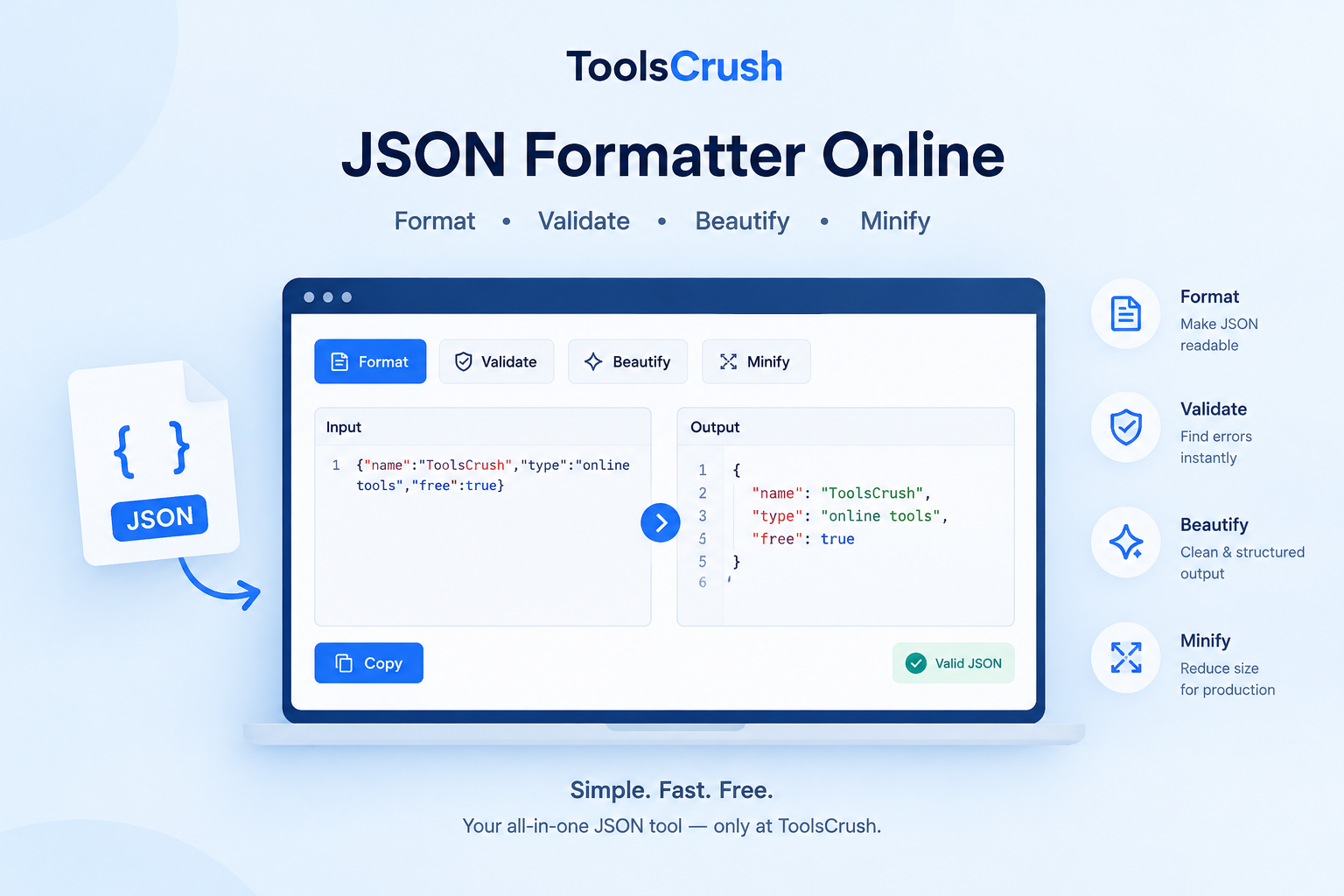
JSON Formatter Online is a simple way to turn messy, minified, or difficult-to-read JSON into clean and structured data. It can also help you validate JSON syntax, identify errors, beautify API responses, and minify JSON when you need a compact format.
JSON is widely used for APIs, web applications, configuration files, databases, automation workflows, and communication between different software systems. The official JSON specification describes JSON as a lightweight, text-based format for exchanging structured data.
When JSON is properly formatted, developers can understand its structure much faster. When JSON is minified or incorrectly written, even a small syntax error can make debugging difficult.
This guide explains what a JSON formatter is, how to format JSON online, how JSON validation works, common JSON errors, JSON beautification vs minification, and practical ways to use a JSON formatter for API development and debugging.
What Is a JSON Formatter?
A JSON formatter is a tool that reorganizes JSON data into a readable structure using indentation, line breaks, and consistent formatting.
For example, this minified JSON:
{"name":"Vijendra","tools":["PDF","Image","JSON"],"active":true}can be formatted into:
{
  "name": "Vijendra",
  "tools": [
    "PDF",
    "Image",
    "JSON"
  ],
  "active": true
}
The information remains the same, but the formatted version is much easier for a person to read and debug.
A JSON formatter is also commonly called a:
- JSON beautifier
- JSON pretty printer
- JSON prettifier
- JSON indenter
- JSON formatting tool
These terms generally describe the same basic task: making JSON easier to read.
What Is JSON?
JSON stands for JavaScript Object Notation.
Despite its name, JSON is not limited to JavaScript. It is a language-independent text format designed to represent structured data.
According to RFC 8259, JSON can represent objects, arrays, strings, numbers, booleans, and null values.
A basic JSON object looks like this:
{
  "name": "ToolsCrush",
  "type": "online tools",
  "free": true
}
An object contains key-value pairs.
Here:
nameis a key"ToolsCrush"is its valuetypeis a key"online tools"is its valuefreeis a keytrueis its value
JSON also supports nested objects and arrays, which makes it useful for representing complex application data.
What Does a JSON Formatter Online Do?
A JSON Formatter Online can perform several useful tasks depending on the tool.
1. Format JSON
Formatting adds indentation and line breaks to make JSON easier to read.
2. Beautify JSON
Beautifying is another name for formatting JSON into a human-readable structure.
3. Validate JSON
A validator checks whether your JSON follows valid JSON syntax.
4. Minify JSON
Minification removes unnecessary whitespace, line breaks, and indentation.
5. Debug JSON Errors
A good validator can help identify where invalid syntax occurs so you can correct it.
ToolsCrush provides a browser-based JSON Formatter & Validator that lets you format, validate, beautify, and minify JSON directly in the browser.
How to Format JSON Online
Formatting JSON does not need complicated software.
Step 1: Open the JSON Formatter
Open the ToolsCrush JSON Formatter.
Step 2: Paste Your JSON
Copy your JSON data and paste it into the editor.
For example:
{"user":{"name":"Alex","age":25},"active":true}Step 3: Format the JSON
Select the Format JSON option.
The formatter restructures the JSON into a readable format.
Step 4: Check for Errors
If the JSON is invalid, the validator can identify a syntax problem.
Step 5: Copy the Result
Once the JSON is properly formatted, copy the output and use it in your application, API testing workflow, configuration file, or debugging process.
JSON Formatter vs JSON Validator
These two functions are related but not identical.
JSON Formatter
A formatter primarily improves readability.
It takes:
{"product":{"name":"Laptop","price":50000}}and produces:
{
  "product": {
    "name": "Laptop",
    "price": 50000
  }
}
JSON Validator
A validator checks whether the JSON follows valid syntax.
For example:
{
  "name": "Laptop",
  "price": 50000,
}
The trailing comma makes this invalid JSON.
A formatter may therefore be paired with a validator so that users can both read and check their JSON.
What Is a JSON Beautifier?
A JSON beautifier converts compact or poorly formatted JSON into a structured, readable format.
Beautify and format generally refer to the same basic process.
For example:
Before
{"company":"ToolsCrush","category":"Developer Tools","free":true}After
{
  "company": "ToolsCrush",
  "category": "Developer Tools",
  "free": true
}
The beautified JSON is easier to inspect, edit, and debug.
What Is JSON Minification?
JSON minification is the opposite of beautification.
Instead of adding whitespace, minification removes unnecessary whitespace.
Beautified JSON
{
  "name": "ToolsCrush",
  "type": "tools",
  "free": true
}
Minified JSON
{"name":"ToolsCrush","type":"tools","free":true}The underlying data is the same.
Minified JSON can be useful when a compact representation is preferred for transmission or storage.
JSON Formatting vs JSON Minification
| Feature | Formatting | Minification |
|---|---|---|
| Main purpose | Readability | Compactness |
| Adds indentation | Yes | No |
| Removes whitespace | No | Yes |
| Easier for humans | Yes | No |
| Smaller text representation | Usually no | Yes |
| Useful for debugging | Yes | Less convenient |
| Useful for compact payloads | Less | Yes |
A common development workflow is:
Format → Edit/Debug → Validate → Minify → Send
Common JSON Syntax Errors
Many JSON problems come from a few common mistakes.
1. Trailing Commas
Incorrect:
{
  "name": "Alex",
  "age": 25,
}
Correct:
{
  "name": "Alex",
  "age": 25
}
The final property should not have an extra comma.
2. Using Single Quotes
Incorrect:
{'name': 'Alex'}Correct:
{"name": "Alex"}Standard JSON strings use double quotation marks.
3. Unquoted Keys
Incorrect:
{
  name: "Alex"
}
Correct:
{
  "name": "Alex"
}
JSON property names must be strings.
4. Missing Commas
Incorrect:
{
  "name": "Alex"
  "age": 25
}
Correct:
{
  "name": "Alex",
  "age": 25
}
A comma separates members within an object.
5. Incorrect Boolean Values
JSON uses:
true
false
not:
True
False
JSON literals are case-sensitive.
6. Incorrect Null Value
JSON uses:
nullnot:
NULLor:
Null7. Missing Brackets
Every JSON object and array must have the appropriate closing bracket.
For example:
{
  "users": [
    {
      "name": "Alex"
    }
  ]
}
Nested structures can become difficult to inspect manually, which is where a formatter becomes useful.
Why Use a JSON Formatter for API Responses?
APIs frequently return structured JSON.
A response may contain:
- User information
- Product information
- Authentication details
- Orders
- Transactions
- Configuration values
- Error messages
- Application settings
A large API response can become difficult to understand when it appears as one long line.
For example:
{"status":"success","data":{"users":[{"id":1,"name":"Alex"},{"id":2,"name":"Sam"}]}}Formatting it makes the hierarchy much clearer:
{
  "status": "success",
  "data": {
    "users": [
      {
        "id": 1,
        "name": "Alex"
      },
      {
        "id": 2,
        "name": "Sam"
      }
    ]
  }
}
This makes it easier to identify objects, arrays, keys, values, and nested relationships.
JSON Formatter for API Debugging
Developers often inspect API responses while building or troubleshooting applications.
Suppose an API returns:
{
  "status": "error",
  "message": "Invalid request",
  "details": {
    "field": "email"
  }
}
Formatting helps you quickly understand the relationship between the error message and the details object.
A JSON formatter can therefore become a useful part of an API debugging workflow.
For JavaScript applications, the built-in JSON.parse() method parses a JSON string into a JavaScript value or object, while JSON.stringify() converts a JavaScript value into JSON notation.
JSON Formatter for Developers
A JSON formatter can be useful for:
- Front-end developers
- Back-end developers
- API developers
- QA testers
- Data analysts
- Web developers
- Students learning programming
- DevOps engineers
- Technical support teams
You do not always need a full development environment simply to make a JSON response readable.
For quick formatting and validation, a browser-based tool can be more convenient.
JSON Formatter for Configuration Files
JSON is also used in configuration files.
Examples can include:
- Application configuration
- Package metadata
- Build configuration
- API settings
- Project settings
- Test fixtures
- Data files
When configuration becomes deeply nested, formatting makes the structure easier to inspect.
Before modifying a configuration file, always make sure you understand which application uses it and keep a backup when appropriate.
Is Online JSON Formatting Safe?
The answer depends on how the specific tool processes your data.
If you are working with sensitive JSON, you should check whether the tool sends your content to a remote server.
ToolsCrush’s JSON Formatter is designed as a browser-based utility, and its tool page states that formatting, validation, and minification happen in the browser.
Even with browser-based tools, you should avoid pasting highly sensitive credentials, production secrets, private keys, passwords, or authentication tokens into any website unless you have verified its data-handling behavior.
JSON Formatter Online vs Manual Formatting
You can format JSON manually, but it becomes inefficient for large or deeply nested data.
Manual formatting
Useful when:
- JSON is very small
- You are learning JSON syntax
- You need to make a tiny change
Online formatter
Useful when:
- JSON is minified
- JSON has many nested levels
- You need to validate syntax
- You are debugging an API response
- You need readable output quickly
For everyday development, an online formatter can save time when you only need to inspect or clean up a JSON payload.
How to Validate JSON Before Using It
A simple workflow is:
1. Paste JSON
Place the JSON into the validator.
2. Run validation
Check whether the structure follows valid JSON syntax.
3. Locate the error
If the validator reports an error, inspect the indicated area.
4. Correct the syntax
Check commas, quotation marks, brackets, keys, and values.
5. Format the JSON
Once valid, beautify it for easier reading.
6. Use or export the JSON
Copy the validated JSON into your application or workflow.
JSON Formatter vs JSON Editor
These tools are related but serve different purposes.
A JSON formatter primarily focuses on formatting and readability.
A JSON editor may provide more advanced features for modifying the JSON structure, navigating objects, changing values, and managing nested data.
If your goal is simply to make a response readable or check its syntax, a formatter and validator may be enough.
Can You Format JSON on Mobile?
Yes.
A browser-based JSON formatter can be accessed from a modern smartphone or tablet without installing a dedicated desktop application.
This can be useful when you receive JSON through:
- API documentation
- Developer dashboards
- Logs
- Chat messages
- Cloud platforms
- Mobile development environments
For large JSON documents, however, a desktop browser may provide a more comfortable editing experience.
How to Make JSON Easier to Read
Follow these simple practices:
- Use consistent indentation.
- Keep object and array structures properly nested.
- Use descriptive property names.
- Validate JSON before using it.
- Avoid unnecessary duplication.
- Keep sensitive information out of public examples.
- Minify only when compact output is required.
- Format API responses when debugging.
- Use a validator to catch syntax errors.
- Keep production configuration files backed up before making changes.
JSON Formatting Example
Consider this API-style response:
{"user":{"id":101,"name":"Alex","roles":["admin","editor"],"profile":{"country":"India","active":true}}}After formatting:
{
  "user": {
    "id": 101,
    "name": "Alex",
    "roles": [
      "admin",
      "editor"
    ],
    "profile": {
      "country": "India",
      "active": true
    }
  }
}
The formatted version immediately shows:
- The main
userobject - The user’s ID
- The user’s name
- The roles array
- The nested profile object
- The country
- The active status
This is why formatting is particularly valuable when working with nested API data.
JSON Formatter and Developer Workflow
A practical developer workflow can look like this:
Receive API Response
↓
Format JSON
↓
Validate Syntax
↓
Inspect Structure
↓
Debug or Edit
↓
Test Application
↓
Minify if Required
↓
Send or Store Data
A JSON formatter therefore fits naturally into API development, testing, debugging, and data inspection workflows.
Frequently Asked Questions
What is a JSON Formatter Online?
A JSON Formatter Online is a browser-based tool that formats JSON into a readable structure. Many tools also provide JSON validation, beautification, and minification.
How do I format JSON online?
Paste your JSON into a JSON formatter, select the format or beautify option, review the output, and copy the formatted JSON.
What is a JSON beautifier?
A JSON beautifier converts compact or poorly formatted JSON into a structured format with indentation and line breaks.
What is the difference between JSON formatter and JSON validator?
A formatter focuses primarily on readability, while a validator checks whether the JSON follows valid syntax. Many modern tools combine both functions.
How do I fix invalid JSON?
Check for common problems such as trailing commas, single quotes, missing commas, unquoted keys, incorrect brackets, and invalid values. A JSON validator can help locate the problem.
Can JSON be formatted without installing software?
Yes. A browser-based JSON formatter can format and validate JSON without requiring desktop software.
Can I minify JSON online?
Yes. A JSON minifier removes unnecessary whitespace and line breaks to create a more compact JSON representation.
Is JSON the same as JavaScript?
No. JSON is a separate data interchange format. Although it originated from JavaScript-related syntax and is commonly used with JavaScript, JSON has its own specification and grammar.
What is JSON used for?
JSON is commonly used for exchanging structured data between applications, APIs, web services, configuration files, and software systems.
Is JSON case-sensitive?
Yes. JSON syntax is case-sensitive. For example, true is valid, while True is not the JSON boolean literal.
Quick JSON Formatting Checklist
Before using JSON in your application, check:
- Is the JSON valid?
- Are all property names enclosed in double quotes?
- Are commas correctly placed?
- Are brackets properly closed?
- Are boolean values written as
trueorfalse? - Is
nullwritten correctly? - Are arrays and objects properly nested?
- Does the structure match what your application expects?
- Have you removed sensitive information before sharing it?
- Do you need formatted or minified output?
Get to know more About digital marketing Try Banex Digital
Other Developer Tools You May Find Useful
A JSON formatter is often used alongside other browser-based developer and design utilities. Once you have formatted or validated your JSON, you may need to work with colors, UI configuration, API data, or other development tasks.
Color Picker & Palette Generator
When JSON contains color values for websites, applications, dashboards, themes, or design systems, a color picker can make those values easier to identify and work with.
The ToolsCrush Color Picker & Palette Generator lets you select colors and work with their HEX, RGB, and HSL values. It also includes WCAG 2.1 contrast checking and automatically generates complementary, monochromatic, analogous, and triadic color palettes.
This can be useful when working with JSON configuration such as:
{
  "theme": {
    "primary": "#4f46e5",
    "background": "#ffffff",
    "text": "#111827"
  }
}
You can format this JSON with a JSON formatter to make the structure easier to read, then use a color picker to inspect or modify the color values.
The Color Picker & Palette Generator also provides contrast information against white and black backgrounds, helping developers and designers evaluate whether text and interface colors have sufficient contrast.
How JSON Formatting and Color Tools Work Together
A practical front-end development workflow may look like this:
Create configuration → Format JSON → Validate JSON → Inspect color values → Check contrast → Test the interface
For example, a developer working on a website theme might store colors, typography settings, spacing values, and component preferences inside a JSON configuration file. Formatting the JSON makes the structure easier to inspect, while a color picker can help analyze individual color values.
ToolsCrush provides both utilities directly in the browser, making them useful for quick development and design tasks without requiring separate desktop software.
Other Useful ToolsCrush Developer Utilities
Depending on your workflow, you may also find these browser-based tools useful:
- JSON Formatter — Format, validate, beautify, and minify JSON.
- Color Picker & Palette Generator — Convert HEX, RGB, and HSL values, check contrast, and generate color harmonies.
- Word Counter & Keyword Density Checker — Analyze text and keyword usage.
- Meta Tag Generator — Create essential SEO meta information.
- Robots.txt Generator — Build robots.txt files for search-engine crawling instructions.
- Sitemap XML Builder — Generate an XML sitemap structure for websites.
Using specialized tools for individual tasks can make development workflows faster while keeping each task simple and focused.
Final Takeaway
A JSON Formatter Online is one of the simplest developer utilities for turning difficult-to-read JSON into clean, structured data.
Whether you are debugging an API response, checking a configuration file, validating JSON syntax, learning development, or preparing a payload, formatting can make the underlying structure much easier to understand.
ToolsCrush’s JSON Formatter & Validator combines formatting, validation, beautification, and minification in a browser-based workflow, making it useful for quick everyday JSON tasks.
For developers, the most useful workflow is simple:
Paste → Validate → Format → Inspect → Fix → Copy
When JSON becomes difficult to read, a good formatter turns a wall of text into a structure you can actually understand.